Navigation and Hotkeys
Manjikaze is configured to enable efficient keyboard-based navigation and window management. This guide will help you learn the key shortcuts that will make you more productive.
Workspaces
Manjikaze is configured with 3 fixed workspaces by default. These workspaces allow you to organize your applications and tasks effectively across multiple virtual desktops.
Workspace Usage Strategies
You can use workspaces in various ways depending on your workflow:
- Project-based: Dedicate each workspace to a different project
- Task-based: Organize by activity type (coding, documentation, communication)
- Context-based: Separate work and reference materials (code editor in one workspace, documentation browser in another)
Workspace Navigation
| Shortcut | Action |
|---|---|
Super + 1 | Switch to workspace 1 |
Super + 2 | Switch to workspace 2 |
Super + 3 | Switch to workspace 3 |
Application Shortcuts
Manjikaze provides quick shortcuts to launch and manage common applications:
| Shortcut | Action |
|---|---|
Super + W | Launch web browser |
Super + E | Open file explorer (Nautilus) |
Super + Space | Open application launcher |
Window Management
Efficiently manage your windows with these shortcuts:
| Shortcut | Action |
|---|---|
Super + Up | Maximize window |
Super + BackSpace | Begin window resize |
Alt + F4 | Close window |
Alt + Tab | Switch between windows |
Undecorate Extension
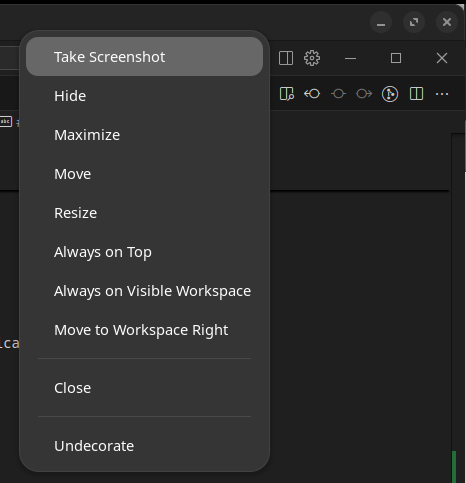
Manjikaze includes the Undecorate extension which allows you to remove window decorations:
- What it fixes: Applications like Cursor render with a double toolbar, creating wasted space
- How to use: Right-click the top toolbar of a window and select "Undecorate" from the menu
- Moving undecorated windows: Press
Super + BackSpaceto begin resize/move mode - Better alternative: Use the Tactile tiling shortcuts (see Tiling documentation) for more efficient window management
Multi-Monitor Setup
Manjikaze is optimized for multi-monitor configurations:
- The dock appears at the bottom of each monitor
- Workspaces are isolated per monitor, allowing different workspaces on each screen
- The dash (app launcher) is configured to appear on each monitor independently
Clipboard Management
Access and manage your clipboard history with these shortcuts:
| Shortcut | Action |
|---|---|
Ctrl + F9 | Show clipboard history |
Ctrl + F10 | Clear clipboard history |
Ctrl + F11 | Select previous clipboard history entry |
Ctrl + F12 | Select next clipboard history entry |
For more details on clipboard features, see the Clipboard Indicator extension.
Screenshots
| Shortcut | Action |
|---|---|
Super + Print | Take a screenshot (using Flameshot) |
File Management
Nautilus (the file manager) is configured with the following settings:
- List view by default
- Smaller icon size for more compact viewing
- Folders sorted before files
- Webdev folder bookmark automatically added
To navigate quickly to your development directory:
- Press
Super + Eto open Nautilus - Click on the "Webdev" bookmark in the sidebar